Your phone holds your messages, photos, location history and accounts, so a few minutes spent on its privacy settings pays off. The steps below work on both iPhone and Android. Menu names and positions change between versions and manufacturers, so use the search box in Settings if you cannot find an option right away.
1. Review app permissions
Open Settings and look for the privacy or permissions section. Check which apps can use your camera, microphone, contacts, photos and location. Remove access that an app does not need to do its job: a flashlight app has no reason to read your contacts. Many phones also show a recent-activity view of which apps used these features lately.
2. Limit location access
For each app that uses your location, choose the most limited option that still works: only while using the app, or ask each time. Avoid giving permanent access unless you need it, for example for a navigation app. Where offered, turn off precise location for apps that only need your general area.
3. Reduce ad tracking
Phones let you limit how apps track you for advertising. Look for options about tracking, ad personalization or your advertising ID, and turn off what you do not want. This does not remove ads, but it reduces how much data is used to target them.
4. Hide sensitive notifications on the lock screen
Message previews and verification codes can be read by anyone who picks up your phone. Set notifications to hide their content when the phone is locked, at least for messaging, email and banking apps.
5. Use a strong screen lock
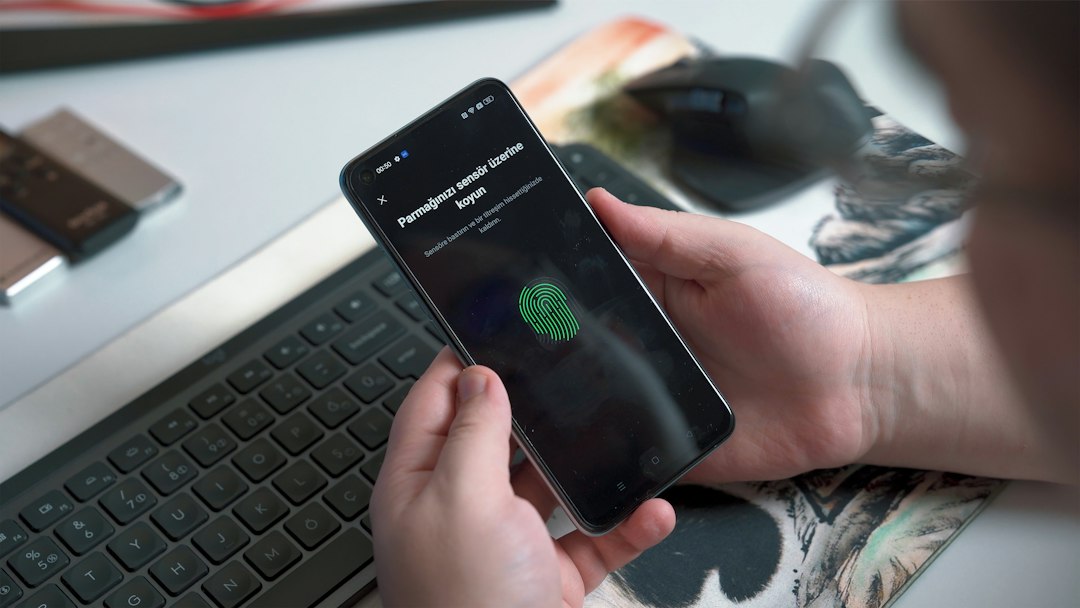
Use a passcode of at least six digits, or a longer password, instead of a short PIN or a simple pattern, and add fingerprint or face unlock for convenience. Set the phone to lock automatically after a short time.
6. Keep the phone and apps updated
Updates fix security problems. Turn on automatic updates for the system and for apps, and uninstall apps you no longer use, since each one is another thing that can collect data or have a flaw.
7. Enable find-my-device and remote lock
Both iPhone and Android include a feature to locate, lock or erase a lost phone. Make sure it is switched on now, because it only works if it was enabled beforehand. Also check that your account recovery email and phone number are correct.
8. Protect the accounts behind the phone
Your phone account, such as your Apple or Google account, controls your backups and passwords. Protect it with a unique password and two-factor authentication, and be careful with messages that ask you to confirm details or click a link. Our guide to spotting a phishing email also applies to text messages.
Make it a habit
Permissions pile up over time as you install apps. Repeat this check every few months, and again each time you install an app that asks for access to something sensitive. Saying no first is easy; you can always grant a permission later if the app really needs it.